
 Go back

+

Sync Zoom and easily start video calls from Verkian.
You’ll be able to integrate your Zoom Account with Verkian if:
- You have an account on Verkian (whether you’re in any paid plan or free plan).
- Your role in the platform are the following: Site Owners, Admin, PM, Teammate.
To connect your Zoom Account with Verkian do as follow:
- Login to your Verkian Account at https://app.verkian.com/login
- In the upper-right corner, click on your profile picture/personal avatar.
- Click on integrations.
- Once you are on integrations click on Add to Zoom.
- You’ll be redirected to Zoom. Login to your Zoom Account.
- Follow the prompt and accept all the permissions Verkian App requests you to add it to your account.
When you finish connecting your Zoom Account with Verkian you’ll be able to automatically generate Zoom links in your events or meetings created with Teament’s Smart Calendar and invite whoever you want (Whether they’re part of your Teament’s workspace or not).
Note: Once you are connected, you’ll be able to move some configuration for your Zoom meetings from Verkian as well.
To create a Zoom meeting in Verkian be sure you already connect your Zoom Account with Verkian, if you still didn’t connect it click here to show you how.
If you already connected your Zoom Account with Verkian do as follow to start creating Zoom meetings in Verkian:
- Create a new event clicking on your calendar or in
 at the top of your calendar in your dashboard or in your Smart Calendar (in the tab Calendar)
- A pop-up will appear to create your new event.
- Inside the pop-up event, a Zoom switch will appear as follows.
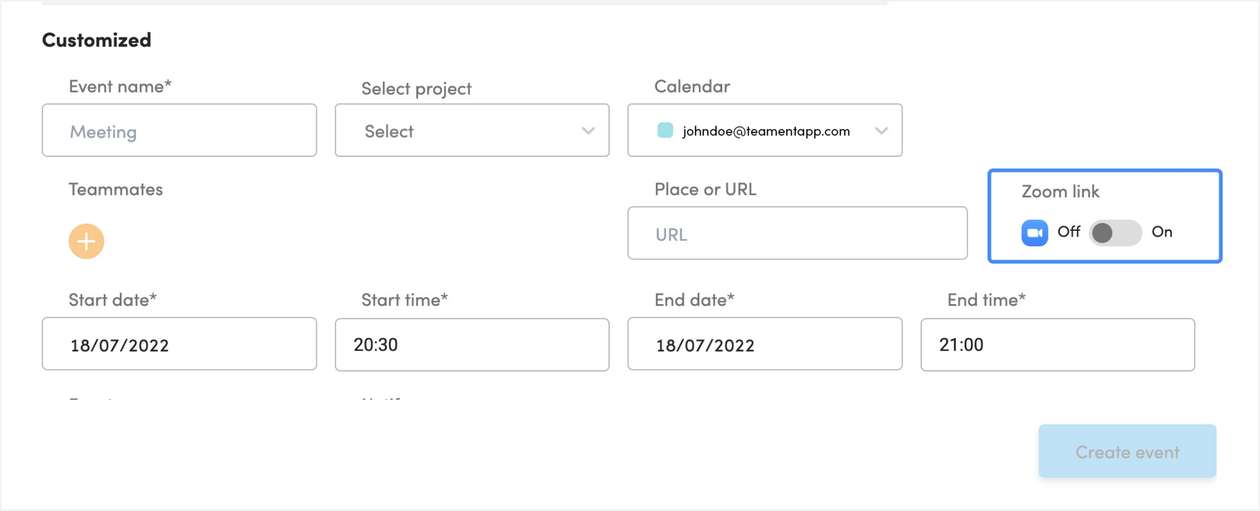
- Switch it to on.
- Click Create event.
Once your event has been created you can click on the event and you’ll see the Zoom url of the event in the preview of the event.
If you want to setup your Zoom Meetings before creating any zoom events on Verkian, do as follows:
- Once logged in, go to the upper-right corner and click on your profile picture/personal avatar.
- Click on integrations.
- Once you are on integrations click on Accounts.
From there you could setup:
- If you want to create Zoom Meetings using your Personal Meeting ID (PMI) or generate a Meeting ID automatically.
- A meeting password for your Zoom Meetings.
- The waiting room for your Zoom Meetings.
- The video for you (the host) and the participants, whether the video should be on or off, when the Zoom Meeting starts.
- Mute upon entry.
- The auto recording of your Zoom Meeting and where will be stored.
- Select the options as you pleased and then click Back.
Your setup will be saved for all your Zoom Meetings whether you created with Verkian or not, to change any setup, you can change it directly from Zoom or Verkian, if you want to setup basic things.
Note: Whatever change you do to your Zoom Account will change the Zoom setup you did on Verkian and vice versa.
To disconnect your Zoom Account with Verkian do as follow:
- Login to your Verkian Account at https://app.verkian.com/login
- In the upper-right corner, click on your profile picture/personal avatar.
- Click on Integrations.
- Once you are on integrations click on Accounts.
- Scroll all the way down and click Delete.
- A pop-up will appear, asking one more time if you want to unsynchronized your Zoom Account, click Yes, delete.
- Your Zoom Account will be disconnected from Verkian.
Note: Once your Zoom Account is disconnected from Verkian, You will no longer be able to generate a URL Zoom automatically when you create an event from your Smart Calendar on Verkian.
- Go to Zoom Zoom App Marketplace (https://marketplace.zoom.us)
- In the upper-right corner click on Sign in and sign in to your Zoom Account.
- Once logged in, in the upper-right corner, click Manage.
- In the left Sidebar, click Added Apps.
- Locate the Verkian App and click Remove.
Note: Once you remove the Verkian App from your Zoom Account, you will no longer be able to generate Zoom links automatically when you create an event from your Smart Calendar on Verkian.


