
 Go back

+

Integrate Outlook Calendar with Verkian
Sync Outlook Calendar and create, update and manage all your events from Verkian.
You’ll be able to integrate your Outlook Calendar with Verkian if:<0>- You have an account on Verkian (whether you’re in any paid plan or free plan).<0>- Your role in the platform are the following: Site Owners, Admin, PM, Teammate.
To connect your Outlook Calendar with Verkian do as follows:
- Login to your Verkian Account at https://app.verkian.com/login
- In the upper-right corner, click on your profile picture/personal avatar.
- Click on integrations.
- Once you are on integrations click on Sign in with Outlook.
- You’ll be redirected to Outlook to select the email you want to connect.
- Login to your Outlook Account.
- Follow the prompt and accept all the permissions Verkian App requests you to add it to your account.
When you finish connecting your Outlook Account with Verkian you’ll be able to:
- Visualize all the events you have in your Outlook Calendar, inside your Smart Calendar in Verkian
- Create events inside Verkian that automatically will be displayed in your Outlook Calendar.
Note: Once you are connected, you’ll be able to choose which calendars you want to visualize in Verkian and the predefined calendar in which you’ll see all the events created from Verkian.
To display an event created from Verkian in your Outlook Calendar be sure you already connect your Outlook Account with Verkian, if you still didn’t connect it, click here to show you how.
If you already connected your Outlook Account with Verkian do as follow to start visualizing events created from Verkian in your Outlook Calendar:
- Create a new event clicking on your calendar or in
 at the top of your calendar in your dashboard or in your Smart Calendar (in the tab Calendar)
- A pop-up will appear to create your new event.
- Inside the pop-up event, a dropdown called “Calendar” will appear as follows.
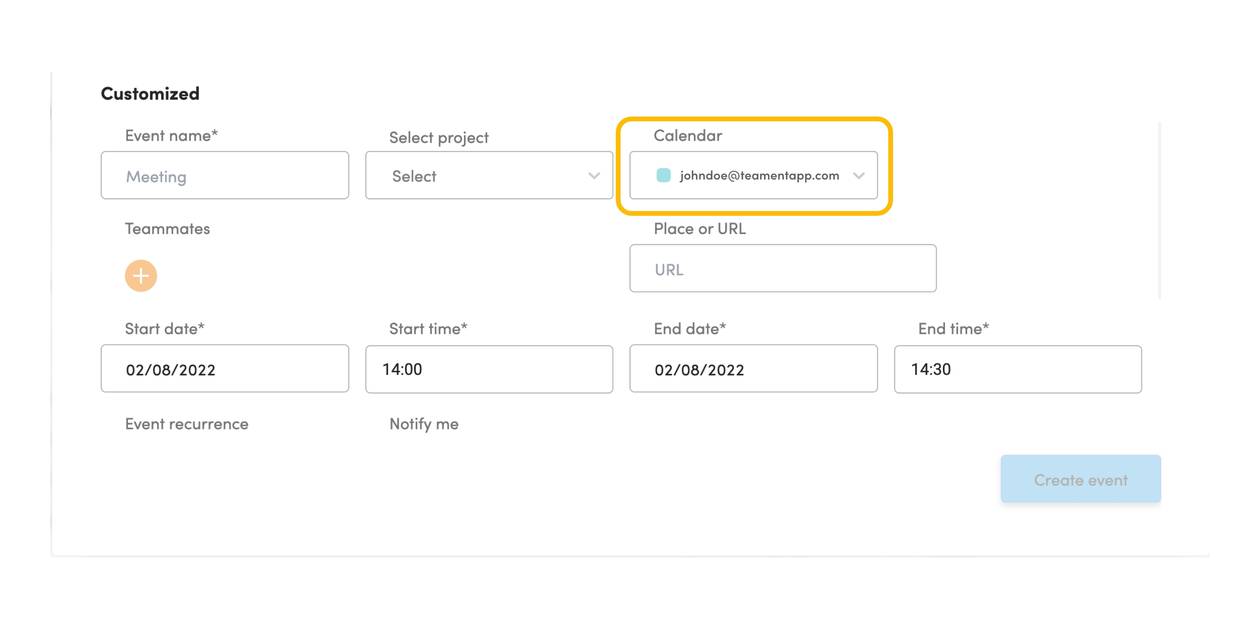
- Click on it and select the calendar in which you want to see the event you are about to create.
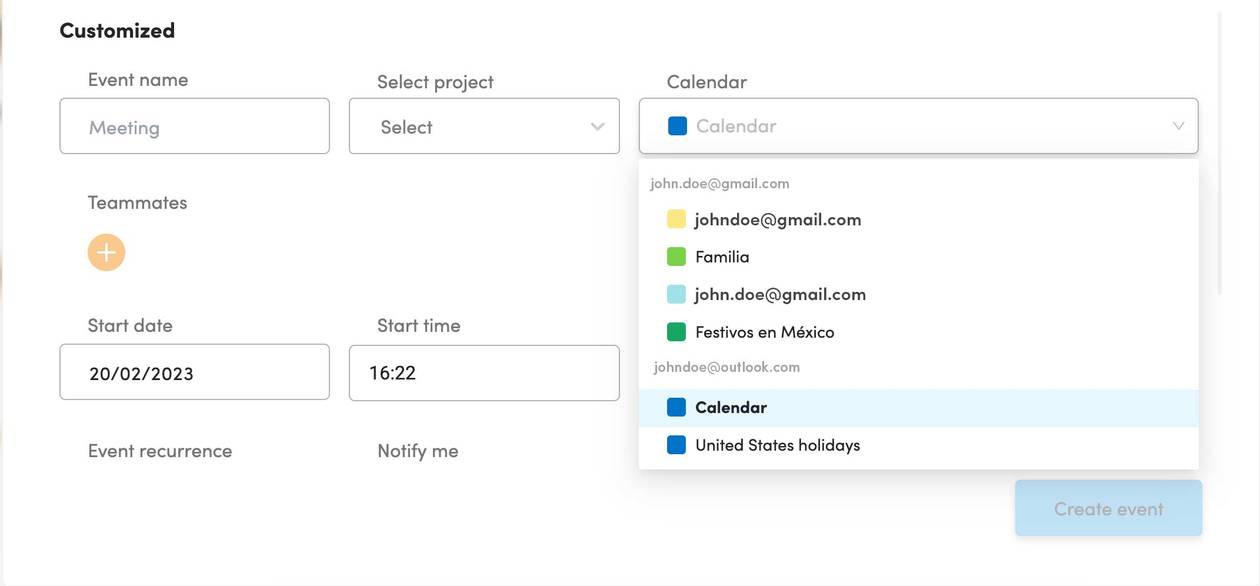
- Click Create event.
Once your event has been created, you can see it in your Smart Calendar and in your Outlook Calendar.
To display an event created from Outlook Calendar in Verkian be sure you already connect your Outlook Account with Verkian, if you still didn’t connect it, click here to show you how.
If you already connected your Outlook Account with Verkian do as follow to start visualizing events created from Outlook Calendar in Verkian:
- Go to your Outlook Calendar and create an event.
- Go to Verkian (https://verkian.com) and go to integrations.
- Once you are on integrations, click on Accounts inside Outlook Section and verify that you have connected the Outlook Account in which you created the event, if it is, please check the box of the calendar you want, then click on the dropdown, and select the calendar you want, one more time.
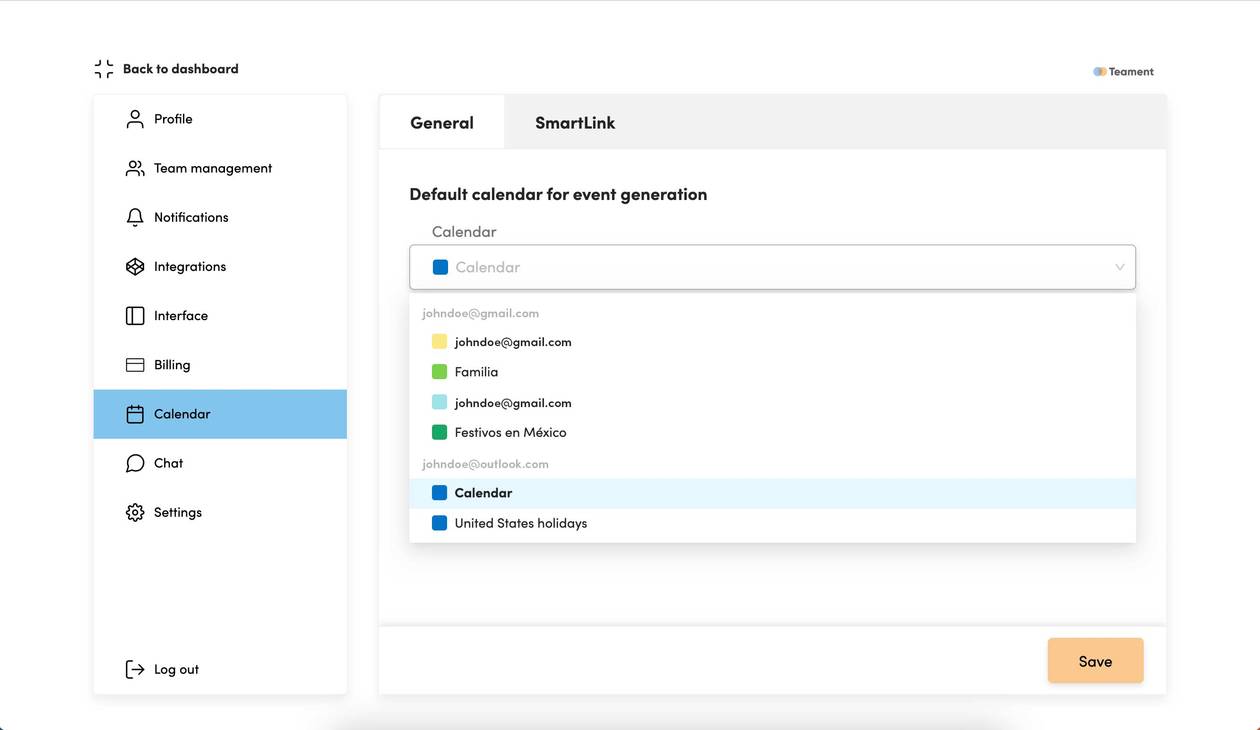
- If the Outlook Account that is connected to Verkian doesn’t have the Calendar in which you created the event, click on Add account to add another Outlook Account and select the calendar in the same way we explained above.
- Go to your Smart Calendar, on the day and hour you created the event in your Outlook Calendar.
- The event created from Outlook Calendar will look like this:
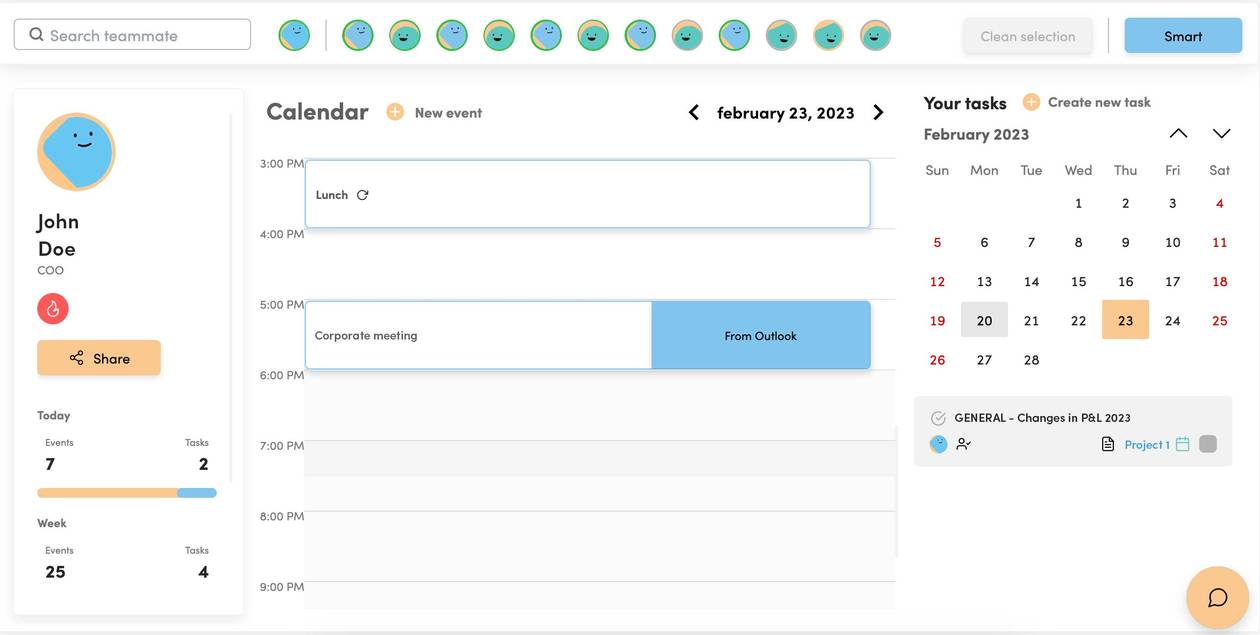
- To edit the event created from Outlook Calendar, click on the event to see the preview and click on “Open Outlook Calendar” to edit the event.
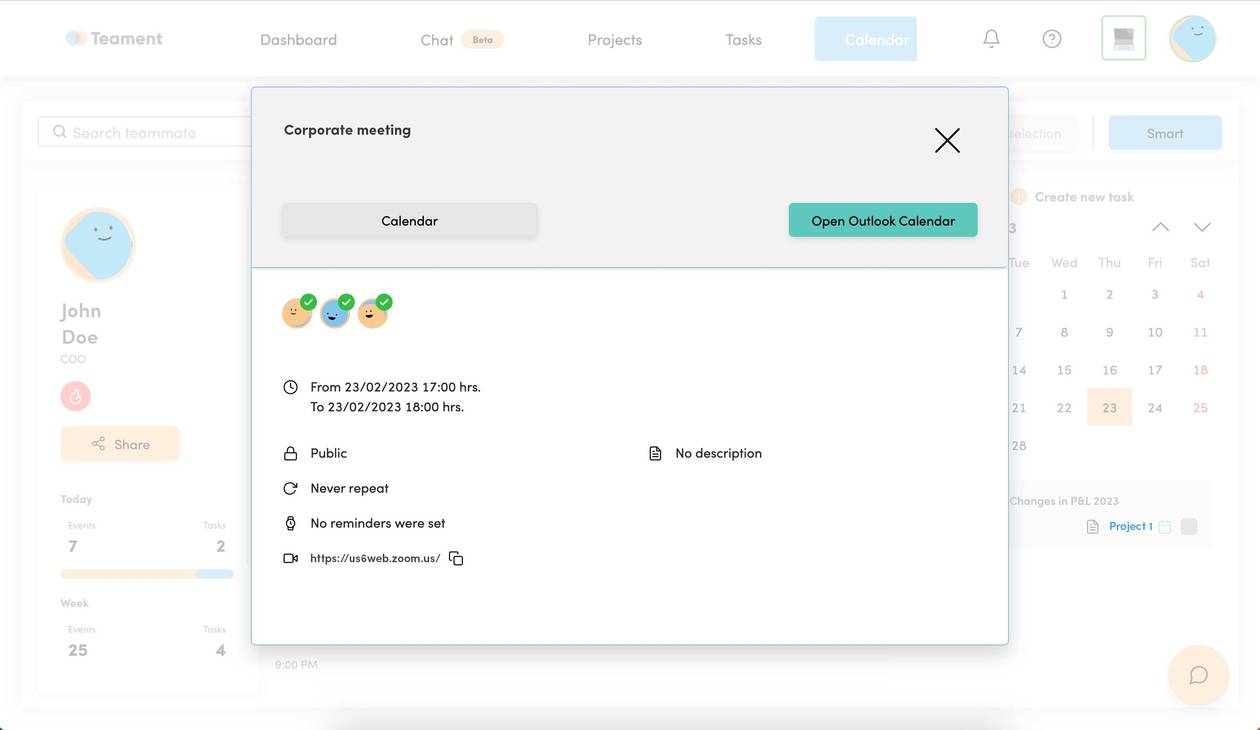
Note: You can click on the event created from Outlook Calendar to see the preview, but if you want to edit the event you will need to go to Outlook Calendar to do so, since you can change an event created from Outlook Calendar on Verkian.
If you want to add another Outlook Calendar on Verkian, do as follows:
- Once logged in, go to the upper-right corner and click on your profile picture/personal avatar.
- Click on integrations.
- Once you are on integrations click on Accounts in the Outlook section.
- If the Calendar you want to add is on the account you already connect with Verkian check the box of the calendar you want.
- If the calendar you want is on a different Outlook Account, click on Add account.
- You’ll be redirected to Outlook to select the email you want to connect. Login to your Outlook Account.
- Follow the prompt and accept all the permissions Verkian App requests you to add it to your account.
Note: You can add as many Outlook Accounts as you want to have as many Outlook Calendars as you want in Verkian.
To remove the Outlook Calendars you already connected in Verkian, do as follows:
- Once logged in, go to the upper-right corner and click on your profile picture/personal avatar.
- Click on integrations.
- Once you are on integrations click on Accounts in the Outlook section.
- Search for the Outlook Account you want to remove from Verkian and click on Delete account.
- A pop-up will appear, asking one more time if you want to unsynchronized your Outlook Account, click Yes, delete.
- Your Outlook Account will be disconnected from Verkian.
Note: Once your Outlook Account is disconnected from Verkian, all the events created from Outlook Calendar will disappear from your Smart Calendar in Verkian, for security reasons. To have them back you’ll need to connect your Outlook Account with Verkian again.


